Showing posts with label Azure Devops. Show all posts

Wednesday, August 17, 2022

Find which server an Azure Devops build has been run on


We have Azure Devops Services coupled with several internal build servers, so when troubleshooting builds, especially sporadic issues, it helps to know which build server the build has run on in order to understand if it is a server specific issue or not. We happen to use Azure Devops Services for our Azure Devops installation and internal build servers.

The powershell script below uses the Azure Devops rest api to retrieve the build information. You may need to adjust the proxy parameter for the invoke-restmethod lines as well as update some of the variables to match your environment. 

The list of build runs i shown in the powershell gridview. There is a ShowInExcel commandline switch in case you prefer to view data with Excel. With this switch enabled, the data will be shown in a gridview and then saved as a csv file, finally the invoke-item command is used to trigger the opening of the .csv file with the assiocated application. Excel may be overkill in this situation but I left it as an example.


[CmdletBinding()]
param(
[System.String]$project="---- Default AZDOS PROJECT ----",
[System.String]$buildIdNumber="--- Default BUILD DEFINITION ID ---",
[System.String]$maxBuilds="10",
[switch]$ShowInExcel
)
$pat = '----- YOUR AZDOS PAT TOKEN -----'
$header = @{Authorization = 'Basic ' + [Convert]::ToBase64String([Text.Encoding]::ASCII.GetBytes(":$($pat)"))}
$baseBuildUrl = "https://dev.azure.com/----- COLLECTION ----/$project/_apis/build/builds"
$buildListUrl = "$($baseBuildUrl)?api-version=6.0&definitions=$buildIdNumber&queryOrder=finishTimeDescending&maxBuildsPerDefinition=$maxBuilds"
Write-output $buildListUrl
try
{
#Get build data
$builds=Invoke-RestMethod -uri $buildListURL -Method Get -Header $header -Proxy $env:HTTP_PROXY #-OutFile $outFileName
$builds.value[0].buildNumber
$List = New-Object System.Collections.ArrayList
foreach ($build in $builds.value)
{
#$build=$builds.value[2]
write-host $build.status
if ($build.status -ne "notStarted"){
$timeLineUrl="$baseBuildUrl/$($build.id)/Timeline?api-version=2.0"
$timeline=Invoke-RestMethod -uri $timeLineUrl -Method get -Header $header -Proxy $env:HTTP_PROXY
# Can't get the duration if the build isn't done!
if ($build.status -ne "completed"){
$duration = $build.status
} else {
$duration = "{0:hh}:{0:mm}:{0:ss}" -f $(New-TimeSpan -end $(get-date $build.finishTime) -start $(get-date $build.startTime))
}
$Hash = [ordered]@{
date = get-date -date $build.startTime -Format "yyyy/MM/dd"
time = get-date -date $build.startTime -Format "HH:mm"
duration = $duration
agent = $timeline.records[2].workerName #arbitrary choice of a step in the collection
result = $build.result
successfulSteps = ($timeline.records.result -eq "succeeded").count
buildId = $build.id
buildNumber = $build.buildNumber
branch = $build.sourceBranch.Replace("refs/heads/","") # still some builds don't use branch name as build number
}
$List.Add( $([pscustomobject]$Hash) )
}
}
if ($ShowInExcel) {
$file="$($env:TEMP)\$($build.definition.name)-builds-$(get-date -Format "yyMMdd.HHmm").csv"
# Show results in a gridview window and then save to a temporary file
$List | Out-GridView -PassThru -Title "$($build.definition.name) builds" | Export-Csv -NoType -UseCulture -path $file
write-host "Data saved in $file."
write-host "Opening in Excel"
invoke-item $file
}
else {
$List | Out-GridView -Title "$($build.definition.name) builds"
}
}
catch [Exception]
{
Write-Host $_.Exception.Message
Write-Host $_.Exception.Response
}



Analyze Azure Devops agent usage

Azure Devops agents write logs of all the work they do: with one log per pipeline run. These logs can be analyzed to understand the usage levels of agents on the server by using both the file attributes and contents, which include all the variables and script for a process.

Update the powershell script below with the corresponding folders for your agent installation and update the list of agents, or remove the foreach if you only have one agent running. 

The log folders don't appear to be cleaned so you might want to implement a cleaning schedule, or limit the get-childItem to the most recent week or month if you have a lot of traffic on your agents.

$List = New-Object System.Collections.ArrayList foreach ($agent in ("A7","B1","C1")) { $expression = /^.(\d{4}-\d{2}-\d{2}) .*Job message:\n(.*)\[\1 $WorkerFiles=Get-ChildItem C:\azagent\$agent\_diag\Worker*.log foreach ($file in $WorkerFiles) { $contents = ( Get-Content $file -raw )-replace ' \*{3}', ' "BLOCKED"' #$contents = ( Get-Content C:\azagent\B1\_diag\Worker_20210706-104057-utc.log -raw )-replace ' \*{3}', ' "BLOCKED"' $result = $contents -match "(?s)\[(\d{4}-\d{2}-\d{2}).* Job message:(.*?)\[\1" $jobjson = ConvertFrom-Json $Matches[2] if ($result) { $Hash = [ordered]@{ file=$file.Name date = get-date -date $file.CreationTime -Format "yy/MM/dd" start = get-date -date $file.CreationTime -Format "HH:mm" end = get-date -date $file.LastWriteTime -Format "HH:mm" duration = $file.LastWriteTime - $file.CreationTime environment = $jobjson.variables.'release.environmentName'.value agent = $agent project = $jobjson.variables.'release.definitionName'.value link = $jobjson.plan.owner._links.web.href } $List.Add( $([pscustomobject]$Hash) ) } else { write-host "No Match for " + $file.FullName} } } $fileName="$($env:TEMP)\TFSAgentUsage.csv" $List | Export-Csv -NoType -UseCulture -path $fileName

Monday, May 9, 2022

Using Azure Devops Invoke REST API task in yaml

 Documentation on using the Invoke REST API Azure DevOps task is sparse so I am documenting my solution; hopefully I can spare someone some time and headaches.

First, to be clear, this task is categorized in the GUI as a gate so the Get use case is for true/falseness. This means it is not possible to access any part of the response outside of this step. Although it would be straight forward to script calling a rest method, it is appealing to have a simple step that handles all that and I just configure a condition. It is worth noting, if you don't need to parse the response then Invoke REST API post is a great way for fire and forget type messaging - like sending a teams notification.

In my scenario, I want to automate release branch creation and steps required around that in our corporate processes. Before creating the branch, I want to make sure that Master is not ahead of Develop. Ahead count is available in the Git Stats API. There is a sample response in the documentation that shows that aheadCount is a root property. 

These are the steps I followed

  • Configure a generic service connection without user or password/token information.
  • Create a yaml file with the stages and jobs needed. Note that this is a Server task.
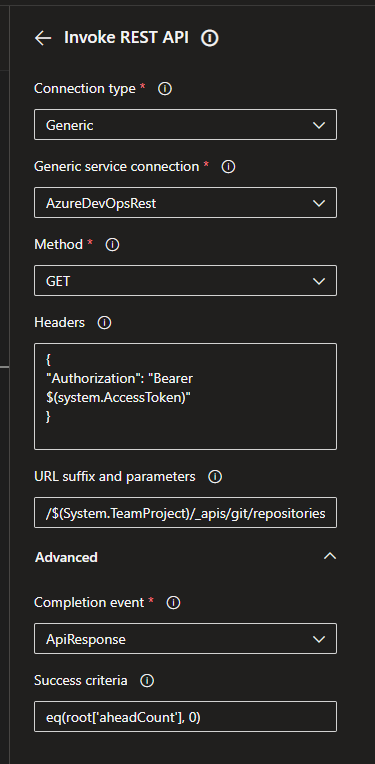
  • Under steps, add an Invoke REST API step, the gui gives some guidance here but remove the default headers and add an Authorization header containing "Bearer $(System.AccessToken)".
  • Add the url, using system variables for simpler re-use.
  • Set the success criteria to "eq(root['aheadCount'], 0)"
  • Following jobs or tasks in the stage should have a dependsOn configured for this task or job.
The GUI interface looks like this


The yaml looks like this. I use a simple delay step just to test the gate quickly before adding the rest of the logic.


stages:
  - stage: Release_Branch
    displayName: Create release branch
    condition: always()
    jobs:
      - job: EntryGate
        displayName: Entry gate
        pool: Server
        steps:      
        - task: InvokeRESTAPI@1
          displayName: Check ahead count is 0
          inputs:
            connectionType: 'connectedServiceName'
            serviceConnection: 'AzureDevOpsRest'
            method: 'GET'
            headers: |
              {
              "Authorization": "Bearer $(system.AccessToken)"
              }
            urlSuffix: '/$(System.TeamProject)/_apis/git/repositories/$(Build.Repository.ID)/stats/branches?name=master&api-version=6.0'
            waitForCompletion: 'false'
            successCriteria: "eq(root['aheadCount'], 0)" 
      - job: one_min_delay
        pool: Server
        dependsOn: 
        - EntryGate
        steps:
        - task: Delay@1
          inputs:
            delayForMinutes: '1'