Wednesday, May 11, 2022

Copy variables from one Octopus Deploy process to another

Cloning Octopus Deploy steps from one process to another does not copy any variables between the two, for understandable reasons, and there is no inbuilt method for cloning variables.

This powershell script:

  • gets the project variables from an Octopus Deploy process
  • presents the variables in a Powershell gridview
  • adds the variables selected in the gridview to the target Octopus Deploy process - there is no logic checking if the variables already exist

$sourceProjectName="API.SourceProject"
$targetProjectName="API.TargetProject"

# OD API KEY
$ODAPIKey = "API-PUT-YOUR-KEY-HERE"
$ODUrl = "http://od.somecompany.org"

$credential = "?apikey=$ODAPIKey"

# for all projects
$ODProjectQuery = "$ODUrl/api/projects/all$credential"

$headers = @{
 "X-Octopus-ApiKey"="$ODAPIKey"
 "accept"="application/json"
}

function putData ($link, $body)
{
    $QueryString = "{0}{1}" -f $ODUrl, $link
    #UTF-8 conversion is required to handle international letters like ö å ñ
    $body_utf8=([System.Text.Encoding]::UTF8.GetBytes($($body | ConvertTo-Json -Depth 15)))
    $requestResponse=Invoke-WebRequest -uri $QueryString -Method Put -Body $body_utf8 -ContentType "application/json" -Headers $headers
    Write-Host "Update Status: $($requestResponse.StatusCode) $($requestResponse.StatusDescription)"
}

function getData ($link)
{
    # Create querystring from partial link
    $QueryString = "{0}{1}{2}" -f $ODUrl, $link, $credential
    Invoke-RestMethod -uri $QueryString -Method Get
}

try {

    #Get a list of all projects
    $projects = Invoke-RestMethod -uri $ODProjectQuery -Method get
       
    # Select Source Project
    $sourceProject=$projects | Where-Object { $_.Name -eq $sourceProjectName}

    # Get variables
    $sourceVars=getData $sourceProject.Links.Variables

    # Display variables in gridview and save selected variables
    $importVars = $sourceVars.Variables | Select-Object -Property * -ExcludeProperty Id | Out-GridView -PassThru -Title "Select variables to copy to target project"
    # write out selected variables to output
    $importVars | ConvertTo-Json    

    # Get Target project
    $targetProject=$projects | Where-Object { $_.Name -eq $targetProjectName}
   
    # get target variables
    $targetVariables = getData $targetProject.Links.Variables

    Write-Host "Target variable version pre-update: $($targetVariables.Version)"

    # Add selected variables to target variables
    $targetVariables.Variables += $importVars

    # Send updated variable list back to target OD process
    putData $targetProject.Links.Variables $targetVariables
}
catch
{
    Write-Host $_.Exception.Message
    Write-Host $_.Exception.Response.StatusDescription
    Write-Host $_.ErrorDetails
}

Monday, May 9, 2022

Using Azure Devops Invoke REST API task in yaml

 Documentation on using the Invoke REST API Azure DevOps task is sparse so I am documenting my solution; hopefully I can spare someone some time and headaches.

First, to be clear, this task is categorized in the GUI as a gate so the Get use case is for true/falseness. This means it is not possible to access any part of the response outside of this step. Although it would be straight forward to script calling a rest method, it is appealing to have a simple step that handles all that and I just configure a condition. It is worth noting, if you don't need to parse the response then Invoke REST API post is a great way for fire and forget type messaging - like sending a teams notification.

In my scenario, I want to automate release branch creation and steps required around that in our corporate processes. Before creating the branch, I want to make sure that Master is not ahead of Develop. Ahead count is available in the Git Stats API. There is a sample response in the documentation that shows that aheadCount is a root property. 

These are the steps I followed

  • Configure a generic service connection without user or password/token information.
  • Create a yaml file with the stages and jobs needed. Note that this is a Server task.
  • Under steps, add an Invoke REST API step, the gui gives some guidance here but remove the default headers and add an Authorization header containing "Bearer $(System.AccessToken)".
  • Add the url, using system variables for simpler re-use.
  • Set the success criteria to "eq(root['aheadCount'], 0)"
  • Following jobs or tasks in the stage should have a dependsOn configured for this task or job.
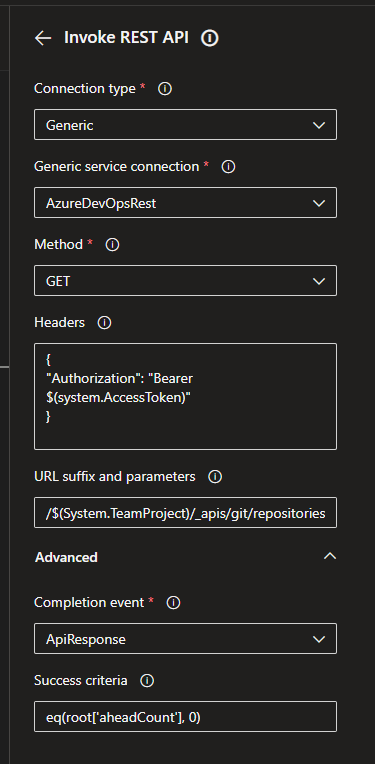
The GUI interface looks like this


The yaml looks like this. I use a simple delay step just to test the gate quickly before adding the rest of the logic.


stages:
  - stageRelease_Branch
    displayNameCreate release branch
    conditionalways()
    jobs:
      - jobEntryGate
        displayNameEntry gate
        poolServer
        steps:      
        - taskInvokeRESTAPI@1
          displayNameCheck ahead count is 0
          inputs:
            connectionType'connectedServiceName'
            serviceConnection'AzureDevOpsRest'
            method'GET'
            headers: |
              {
              "Authorization": "Bearer $(system.AccessToken)"
              }
            urlSuffix'/$(System.TeamProject)/_apis/git/repositories/$(Build.Repository.ID)/stats/branches?name=master&api-version=6.0'
            waitForCompletion'false'
            successCriteria"eq(root['aheadCount'], 0)" 
      - jobone_min_delay
        poolServer
        dependsOn
        - EntryGate
        steps:
        - taskDelay@1
          inputs:
            delayForMinutes'1'


Monday, April 24, 2017

Using outlook rules, json and powershell to link TFS 2017 work items to a parent

We use a TFS user story as a Support inbox and wanted to simplify creating new work items for common issues. We created templates for work items based on existing work items which had the parent required but discovered that the parent link does not get created for the new items.

Since our team doesn't have admin access to the TFS server, I decided to see if I could use the TFS notifications to trigger a custom outlook rule script which would send the task id to a local powershell script which in turn does the actual link creation. I decided that would be easier than trying to work out how to access REST services through VBA since there are more powershell examples out there than VBA examples.

I chose to go with json to define the parent link instead of doing it through code. It seemed simpler to me for maintenance purposes. The relevant json documentation was just a little confusing for a json novice because it looks like there should be double curly brackets under attributes. However doing that gave me the error:
"You must pass a valid patch document in the body of the request."

The final json looks like this
[
  {
    "op": "add",
    "path": "/relations/-",
    "value":
    {
        "rel": "System.LinkTypes.Hierarchy-Reverse",
        "url": "https://tfs.myCompany.org/tfs/DefaultCollection/_apis/wit/workitems/259355",
        "attributes":
        {
            "isLocked": false 
        }
    }
}
]
The Outlook rule looks for all emails with "Task" in the subject and "create Task" in the body.

You may need to enable the developer tools in outlook first. Once it is enabled, click on the Developer Tab and click on Visual Basic to the far left. This will open the VBA editor.

The outlook rule script itself is very simple.
Sub SendToTFS(MyMail As MailItem)
 If InStr(1, MyMail.Subject, "Task") = 1 Then
   Dim taskid As String
   taskid = Mid(MyMail.Subject, 6, 6)
   scriptCmd = "powershell.exe -NoLogo -NonInteractive -File ""e:\scripts\TFSLinkParent.ps1"" -argumentlist " & taskid & " > ""e:\scripts\TFSLinkParentLog.txt"""
   Shell scriptCmd
 End If
End Sub
The code first checks that Task is right at the beginning of the subject line to avoid reacting to forwards and replies.
The task id is then extracted from the subject line and sent to the powershell script.

Finally the Powershell script to do the job looks like this:
$TaskId = $args[1]

$taskItemURL = "https://tfs.mycompany.org/tfs/DefaultCollection/_apis/wit/workitems/$TaskId"
$taskItemRequest = $taskItemUrl+'?$expand=relations' 
$taskItemJson = Invoke-RestMethod -uri "$taskItemRequest" -Method get -UseDefaultCredentials -OutFile E:\scripts\TFSLinkReqLog.txt

if(!($taskItemJson.relations))
{
    $result = Invoke-RestMethod -uri $taskItemURL"?api-version=1.0" -Method patch -UseDefaultCredentials -ContentType application/json-patch+json -InFile E:\scripts\JsonTemplate.txt  -OutFile E:\scripts\TFSLinkLog.txt
}

The script starts with downloading the json for the work item and checks that it doesn't already have any relations. Child relations would also get caught by this check. If there aren't any relations then the current work item is attached to the parent.

Tuesday, November 15, 2016

Update all binding thumbprints

We have 20+ applications and have to update to a new certificate. To avoid having to do a new build and release of all of these applications, some of which haven't been updated for some time, I chose to create a powershell script to update all send ports on the fly.

The script does not stop or start host instances. This could easily be incorporated; check my other blog entry on starting and stopging host instances.

The script uses the BizTalk ExplorerOM to access the settings which means nothing extra needs to be installed on the BizTalk servers.

This script looks long because it includes so much confirmation in the way of output for testing before the final run. The real logic is only 8 lines, including 4 lines of variable declarations.

This example changes two thumbprints at once. It could easily be modified up or down.

$oldClientCert = "ee aa bb 11 22 33 44 55 66 77 88 99 00 ff dd cc ab cd ef 01"
$newClientCert = "ne wt hu mb pr in tg oe si nh er e0 00 00 00 00 00 00 00 00"
$oldServiceCert = "aa bb cc dd ee ff 00 11 22 33 44 55 66 77 88 99 12 23 34 56"
$newServiceCert = "34 2a 15 53 3e 7d 6a 0c 51 20 e4 50 6b 53 df 72 84 55 aa 6a"
  
[void] [System.reflection.Assembly]::LoadWithPartialName("Microsoft.BizTalk.ExplorerOM")  
$Catalog = New-Object Microsoft.BizTalk.ExplorerOM.BtsCatalogExplorer  
$Catalog.ConnectionString = "SERVER=DBINSTANCENAME;DATABASE=BizTalkMgmtDb;Integrated Security=SSPI"

#EnumerateSendPorts $Catalog  
 $port = $catalog.SendPorts[1]
 Write-host "B4 ----> " $port.PrimaryTransport.TransportTypeData

 $catalog.SendPorts | % {

# Line below replaces thumbprints  - UPDATES ORIGINAL VALUE - BUT NO SAVE
$_.PrimaryTransport.TransportTypeData=_
($_.PrimaryTransport.TransportTypeData.Replace($oldServiceCert,$newServiceCert)).Replace($oldClientCert,$newClientCert);

# Line below replaces thumbprints and prints out the new TransportTypeData string - NO UPDATE TO ORIGINAL VALUE
#($_.PrimaryTransport.TransportTypeData.Replace($oldServiceCert,$newServiceCert)).Replace($oldClientCert,$newClientCert);
   }
$port = $catalog.SendPorts[1] 
Write-host "After ----> " $port.PrimaryTransport.TransportTypeData

#No changes are saved until the following line is run
$Catalog.SaveChanges(); 

When testing comment out the the last line to skip saving the updates. To just output the updates, comment out the row updating the original value and uncomment the No Update line.

Don't forget to change the connection string to point to the correct management database instance!

Blog software may force some line breaks - and I added one underscore (_) to indicate I broke the line there.

Friday, November 11, 2016

BizTalk - 404 errors from a post and wsdl from a get


After setting up a new BizTalk server I kept getting HTTP status 404 with substatus 0 when testing a service through the front end web, but when surfing directly to the BizTalk WCF service I received the WSDL.

In the IIS logs I could see that my direct surfing resulted in a GET.


Using PostMan I got the same behaviour of WSDL from a GET and 404 from a POST.


The problem was that I had imported the bindings for our HTTP environment instead of our HTTPS bindings.

Enabling transport security in the bindings, 


and selecting certificate as the client credential type fixed the issue.


Thursday, June 25, 2015

BizTalk - comparing bindings files with excel source

We dynamically generate BizTalk bindings during in our build process. The process uses a binding file and replaces urls and thumbprints with values from a an excel spreadsheet.

The process for updating both of these files is manual so it is natural to find they get out of synch. Manually browsing a binding file is not an easy task so I wrote a powershell script that extracts and compares portnames between the two files.

In our case only the sendports get dynamically updated.
First extract the portnames from the binding file:
  $BindingFileName ="D:\bindings\App1~Binding~Template.xml"
  if ( -not (Test-Path -path $BindingFileName) ){
      "Can't Find"
      $BindingFileName
 exit
 } 
# Load binding information from file
$Bindings = [xml](get-content $BindingFileName)

# extract the ports
$BindingPorts = select-xml $Bindings -xpath "//SendPort" 

# get just the port names
$BindingPortNames = $BindingPorts | foreach { $_.node.Name } | sort-object –Unique 
Now that I have a sorted list of ports from the binding file, I need to get the ports from the excel file. Excel does not need to be installed on the server but the Excel drivers for oledb do need to be installed. Note: This driver is a 32 bit driver. use the -runas parameter or run in the x86 ISE.
$ExcelFileName = "D:\excel\App1~PortConfig.xls"
 
$OleDbConn = New-Object "System.Data.OleDb.OleDbConnection"
$OleDbCmd = New-Object "System.Data.OleDb.OleDbCommand"
$OleDbAdapter = New-Object "System.Data.OleDb.OleDbDataAdapter"
$DataTable = New-Object "System.Data.DataTable"

$OleDbConn.ConnectionString = "Provider=Microsoft.ACE.OLEDB.12.0;Data Source=""$ExcelFileName"";Extended Properties=""Excel 12.0 Xml;HDR=YES"";"
$OleDbConn.Open()

$OleDbCmd.Connection = $OleDbConn
$OleDbCmd.commandtext = "Select Port from [SENDPORT_WCF$]"
$OleDbAdapter.SelectCommand = $OleDbCmd

$RowsReturned = $OleDbAdapter.Fill($DataTable)
$OleDbConn.Close()

#Output something so user sees something is happening 
ForEach ($row in $DataTable) {
Write-host $row.Port
}

$ExcelPortNames = $DataTable | foreach {$_.Port} | sort-object –Unique

The excel file has different tabs for different send ports. This line:
$OleDbCmd.commandtext = "Select Port from [SENDPORT_WCF$]"
specifies which column (Port) to select from which sheet [SENDPORT_WCF$]. 

The final step is to compare the two lists of portnames.
Compare-Object $ExcelPortNames $BindingPortNames -includeequal | ft inputobject, @{n="file";e={ if ($_.SideIndicator -eq '=>') { "binding" } else {if ($_.SideIndicator -eq '<=')  { "excel" } else {"=="}} }} | Out-File "d:\temp\Bank 2.0 bindings comparison.txt" 
Note that this is one long line that has been wrapped by the blog software.
The final result is a table that looks like this:
InputObject         file   
-----------         ----   
WcfSendPort_app1 ==     
WcfSendPort_app2 ==     
WcfSendPort_app3 ==     
WcfSendPort_appx binding
WcfSendPort_appy binding
WcfSendPort_appz binding
WcfSendPort_app1z excel  
WcfSendPort_app2z excel  

I'll leave it as an exercise for the reader to process a whole directory full of bindings files. :). One could also add parameters and send the file names on the comand line.

The complete code:


#Param(
#  [string]$BindingFileName
#)

#Binding files
  $BindingFileName ="D:\bindings\App1~Binding~Template.xml"
  if ( -not (Test-Path -path $BindingFileName) ){
      "Can't Find"
      $BindingFileName
 exit
 } 
 
# Load binding information from file
$Bindings = [xml](get-content $BindingFileName)

# extract the ports
$BindingPorts = select-xml $Bindings -xpath "//SendPort" 

# get just the port names
$BindingPortNames = $BindingPorts | foreach { $_.node.Name } | sort-object –Unique 
 
#EXCEL 
 
$ExcelFileName = "D:\excel\App1~PortConfig.xls"
 
$OleDbConn = New-Object "System.Data.OleDb.OleDbConnection"
$OleDbCmd = New-Object "System.Data.OleDb.OleDbCommand"
$OleDbAdapter = New-Object "System.Data.OleDb.OleDbDataAdapter"
$DataTable = New-Object "System.Data.DataTable"

$OleDbConn.ConnectionString = "Provider=Microsoft.ACE.OLEDB.12.0;Data Source=""$ExcelFileName"";Extended Properties=""Excel 12.0 Xml;HDR=YES"";"
$OleDbConn.Open()

$OleDbCmd.Connection = $OleDbConn
$OleDbCmd.commandtext = "Select Port from [SENDPORT_WCF$]"
$OleDbAdapter.SelectCommand = $OleDbCmd

$RowsReturned = $OleDbAdapter.Fill($DataTable)
$OleDbConn.Close()

#Output something so user sees something is happening 
ForEach ($row in $DataTable) {
Write-host $row.Port
}

$ExcelPortNames = $DataTable | foreach {$_.Port} | sort-object –Unique

#COMPARISON

Compare-Object $ExcelPortNames $BindingPortNames -includeequal | ft inputobject, @{n="file";e={ if ($_.SideIndicator -eq '=>') { "binding" } else {if ($_.SideIndicator -eq '<=')  { "excel" } else {"=="}} }} | Out-File "d:\temp\App1_bindings_comparison.txt" 

Wednesday, November 13, 2013

BizTalk Admin: Powershell script to save suspended messages and terminate suspended instances.

My latest BizTalk administration powershell scripting mission has been to save suspended messages and terminate all suspended service instances. WMI exposes both message instances and service instances and corresponding methods.
Visual Studio Servier Explorer showing WMI BizTalk Classes

The following script is in two steps. First all suspended messages are saved to file and then all suspended service instances are terminated. This script is used as part of a deployment process when the BizTalk cluster is not taking any messages. If the server is actively processing messages, a message could get suspended between the two steps and not get saved but the owning service instance could be terminated.

I have been thinking that one could use the serviceinstanceid to connect directly to the service instance from the message instance and terminate it then thereby avoiding the possibility of deleting a service instance without its corresponding message being saved. However, routing failure reports cannot be saved, (attempting to save them causes an exception) so the routing failure messages and service instances would still need to be cleaned up.
The simplest form of this script looks like this(note that blog software wraps the code):
$nameSpace ="root\MicrosoftBizTalkServer"
$path = "c:\messagedump" 

$filter="(ServiceClass=1 OR ServiceClass=4) AND (ServiceInstanceStatus=4 OR ServiceInstanceStatus=32)"
get-wmiobject MSBTS_MessageInstance -namespace $nameSpace -filter $filter | invoke-wmiMethod -name SaveToFile -arg $path > $null

$filter="(ServiceStatus=4 OR ServiceStatus=32)"
get-wmiobject MSBTS_ServiceInstance -namespace $nameSpace -filter $filter | invoke-wmiMethod -name Terminate > $null
The first filter specifies orchestration or messaging service classes that are suspended(resumable) or suspended(not resumable). All message instance meeting this criteria get returned by the call to get-wmiobject and are piped directly into invoke-wmiMethod. The SaveToFile method exposed by WMI has a path parameter specifying where messages should be written.

Invoke-wmiMethod returns information that is not particularly meaningful in this context so it gets piped out to $null to minimize clutter.

The second filter specifies all resumable and non-resumable service instances and is used to select the service instances. Again the results are piped directly to Invoke-wmiMethod which will invoke the Terminate method. The terminate method has no parameters.

For further reference: here is the MSDN documentatation for the Service Instance Status codes http://msdn.microsoft.com/en-us/library/ee268242(v=bts.10).aspx and for Message Instance Service Class http://msdn.microsoft.com/en-US/library/ee253972(v=bts.10).aspx

In the dev and test environments we don't normally want to save the suspended messages so I extended the script to accept parameters for flexibility. I also had some exceptions during development so I added a function to handle each message with a try/catch. The exception information will be printed but does not stop the processing. This would allow for eventually finetuning the catches if I wanted to account for specific errors.

The longer version of the script looks like this(again beware of line wrapping):
# define parameters: $path is where messages will be saved
# $save - a switch to trigger saving of suspended messages
# $purge - a switch to trigger purging suspended service instances

param([string] $path, [switch] $save, [switch] $purge)
$nameSpace ="root\MicrosoftBizTalkServer"
 
function Save-Message ($messageInstance)
{
  try
  {
    $messageInstance.SaveToFile($path) > $null
  }
  catch
  {
    $messageInstance.MessageInstanceId
    $_.Exception.GetType().FullName
    $_.Exception
  }
}
 
If ($save) {
  if (! $path) { $path = ".\messages"; }
  if (! (Test-Path $path)) { mkdir $path }

  $filter="(ServiceClass=1 OR ServiceClass=4) AND (ServiceInstanceStatus=4 OR ServiceInstanceStatus=32)"
   
  get-wmiobject MSBTS_MessageInstance -namespace $nameSpace -filter $filter | %{Save-Message($_)}
}
   
if ($purge) {
  $filter="(ServiceStatus=4 OR ServiceStatus=32)"
  get-wmiobject MSBTS_ServiceInstance -namespace $nameSpace -filter $filter | invoke-wmiMethod -name Terminate > $null
}
The main changes here are that the path becomes a parameter to the script. If the path is not specified then a default path is used. If the path doesn't exist it will be created. I also added a save and a purge switch to allow complete flexibility around saving and terminating.

I also call the SaveToFile method directly on the message object instead of using invoke-wmiMethod. In case you are new to powershell, the % operator used before the call to Save-Message is an alias for for-each.